Color Separation: Rasterizer Swatches, Vector Geometry, and LightBurn Layers
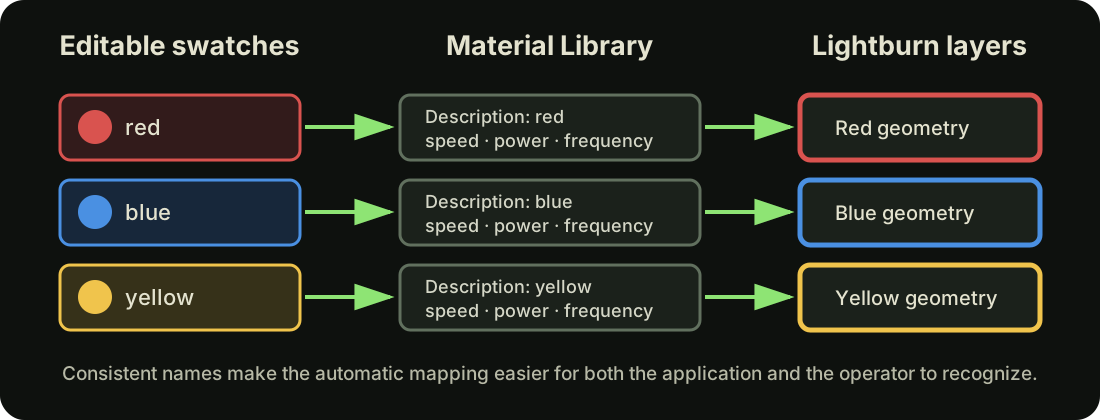
Rasterizer swatches provide a stable bridge between source-image colors, colored vector geometry, and, in Material Library-backed jobs, LightBurn layers configured with matched cut settings.
Selected swatches
Enabled Rasterizer swatches define the candidate target colors, while the selected workflow determines which of those swatches are actually available to the job. Source pixels are quantized to the available swatch colors, connected areas of matching pixels are traced into vector regions, and the resulting geometry is organized by swatch for export.
For a saved Color Palette, only official swatches explicitly assigned in Swatch Palette Vault can be enabled. Choosing Unassigned removes that setting from Rasterizer matching; refreshing or selecting the palette again cannot silently restore the official default. Job History lists the swatches actually selected for the run rather than every name stored in the complete override dictionary.
Official swatches and LightBurn layers
The following reference is ordered by LightBurn's official layer sequence. A Rasterizer swatch name identifies the artwork color used for matching, while the corresponding C-number identifies the LightBurn layer that receives that geometry and its assigned setting.
| LightBurn layer | Rasterizer swatch | Color |
|---|---|---|
C00 | Black | #000000 |
C01 | Blue | #0000FF |
C02 | Red | #FF0000 |
C03 | Green | #00E000 |
C04 | Yellow | #D0D000 |
C05 | Orange | #FF8000 |
C06 | Cyan | #00E0E0 |
C07 | Magenta | #FF00FF |
C08 | Light-Gray | #B4B4B4 |
C09 | Dark-Blue | #0000A0 |
C10 | Dark-Red | #A00000 |
C11 | Dark-Green | #00A000 |
C12 | Dark-Yellow | #A0A000 |
C13 | Dark-Orange | #C08000 |
C14 | Light-Blue | #00A0FF |
C15 | Dark-Magenta | #A000A0 |
C16 | Medium-Gray | #808080 |
C17 | Slate-Blue | #7D87B9 |
C18 | Rose | #BB7784 |
C19 | Periwinkle-Blue | #4A6FE3 |
C20 | Raspberry | #D33F6A |
C21 | Sage-Green | #8CD78C |
C22 | Peach | #F0B98D |
C23 | Light-Pink | #F6C4E1 |
C24 | Orchid-Pink | #FA9ED4 |
C25 | Deep-Purple | #500A78 |
C26 | Rust-Brown | #B45A00 |
C27 | Teal | #004754 |
C28 | Bright-Mint-Green | #86FA88 |
C29 | Light-Gold | #FFDB66 |
Layer settings
A saved Color Palette connects each available official Rasterizer swatch to one selected setting in the palette. Geometry matching that swatch is placed on its official LightBurn layer with the assigned setting's complete cut parameters. Freshly uploaded guest Material Libraries do not have an account-backed assignment map, so their enabled swatch names must match entry Descriptions within the selected material. Rasterizer excludes unmatched or unassigned swatches rather than fabricating laser parameters.
For a beginner-friendly explanation of saved presets and how they are applied to layers, see LightBurn's official Material Library documentation.
Continuous coverage after cleanup
When Minimum Island Area removes a tiny region, Rasterizer transfers that footprint to the touching swatch with the greatest shared pixel-edge contact. This removes unwanted specks while keeping every affected pixel owned by one layer, without automatically expanding Black. Equal contacts use a stable palette-order tie-break; Black remains the fallback only when no swatch touches the island. Rasterizer then validates that Black and non-Black layers do not share positive-area geometry. Transparent modes preserve their intentional empty regions.
Using an iridescent setting in the Rasterizer
The main Rasterizer workflow does not perform the Fauxlographic Etching Lab's calibration, measured-color matching, or fauxlographic-swatch-specific control of diffraction interval and angle. You can still assign a Rasterizer swatch to a tested Material Library cut setting that produces an iridescent mark. Geometry matching that swatch is placed on the corresponding LightBurn layer configured with the assigned cut setting, just like any other Material Library-backed Rasterizer layer.
For a saved Color Palette, select the desired setting in Swatch Palette Vault and assign the official swatch that should represent it. For a freshly uploaded guest library, use a matching entry Description. This workflow is useful when one tested iridescent treatment is enough. Use the Fauxlographic Etching Lab when you need a measured collection of angle- and interval-dependent fauxlographic swatches mapped across the artwork.
Color is not a guarantee
A Rasterizer swatch color identifies matching geometry and its intended output layer, but it does not guarantee the physical color produced by the assigned laser setting.
For a clear MOPA Laser color workflow, assign each setting to the official Rasterizer swatch closest to the physical color it is intended to produce. For example, settings that produce a red mark might be assigned to Red or another appropriate red-hue swatch. If the setting Description already matches an official swatch name, import establishes that assignment automatically; otherwise use the searchable assignment picker without renaming the setting.
Deliberate remapping is allowed, but remember that every source-image region nearest that official swatch will receive the assigned laser setting. Review the assignment display and generated project before engraving.